
Open a draft
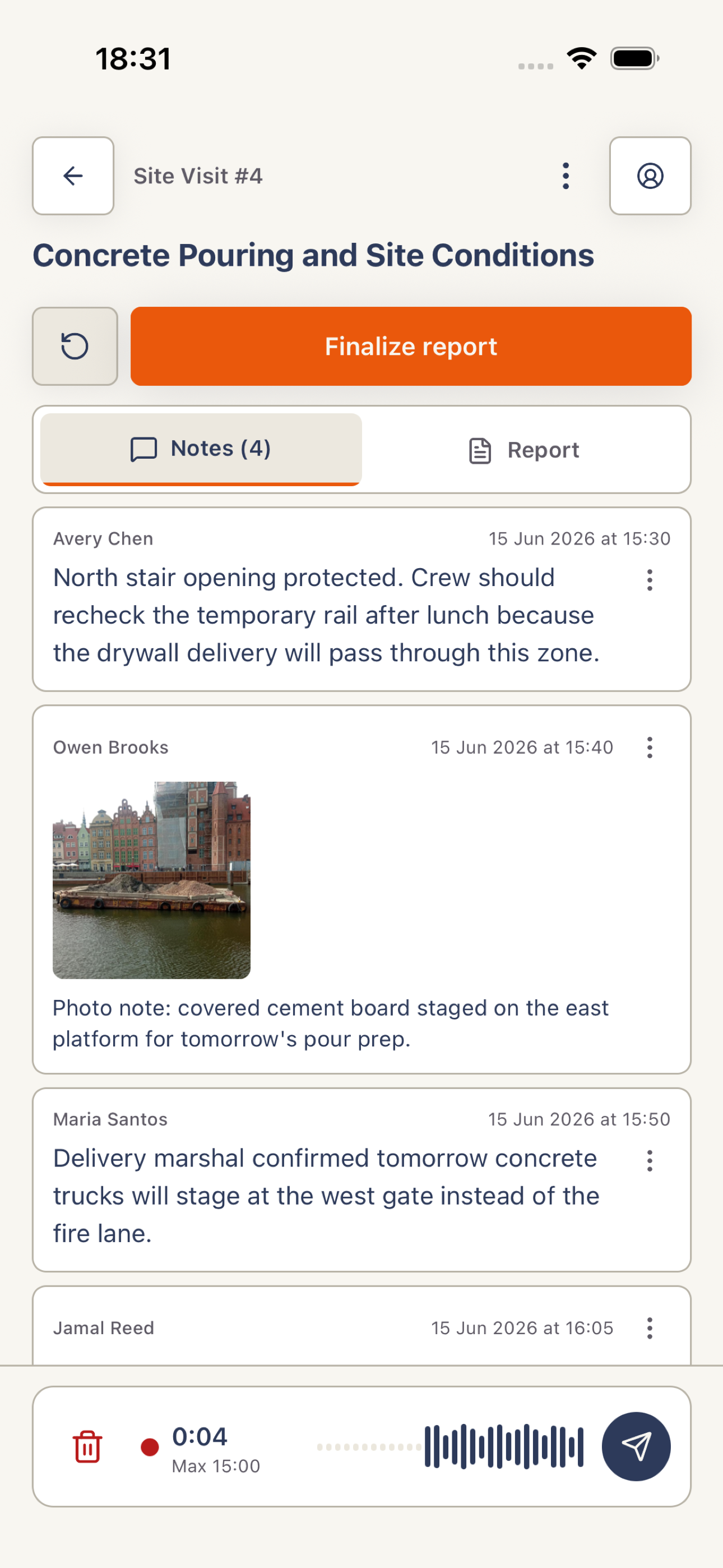
Open a project, choose Reports, and open a draft. Select Notes to see the timeline and capture controls.
Add a text note
Tap Type a site note…, enter one focused update, and tap Send. Include the names, quantities, location, and next action that matter.
Add photos
On iPhone, tap Photo and use the camera. Harpa Pro does not offer Photo Library access on iPhone. On Android, the attachment action can also select existing images. Review the images and wait for uploads to finish.
Record and send voice
Tap Record, speak a short update, then tap the send control. Keep the draft open while Harpa Pro uploads and processes the recording; use the inline retry if processing fails.
 View full screenshot