
Start a report
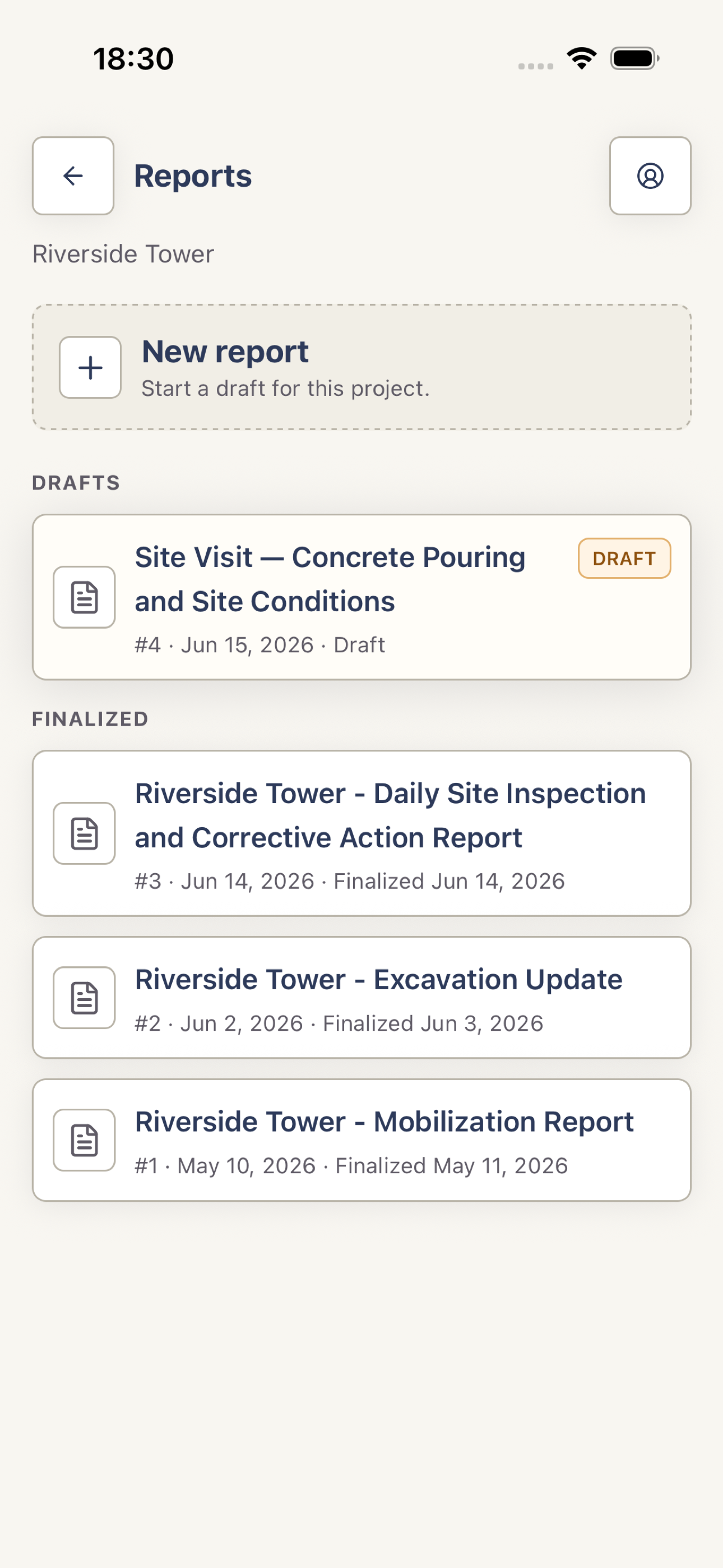
Open a project, tap Reports, then tap New report. Harpa Pro creates a draft and opens its note workspace.
 View full screenshot
 Capture what happened
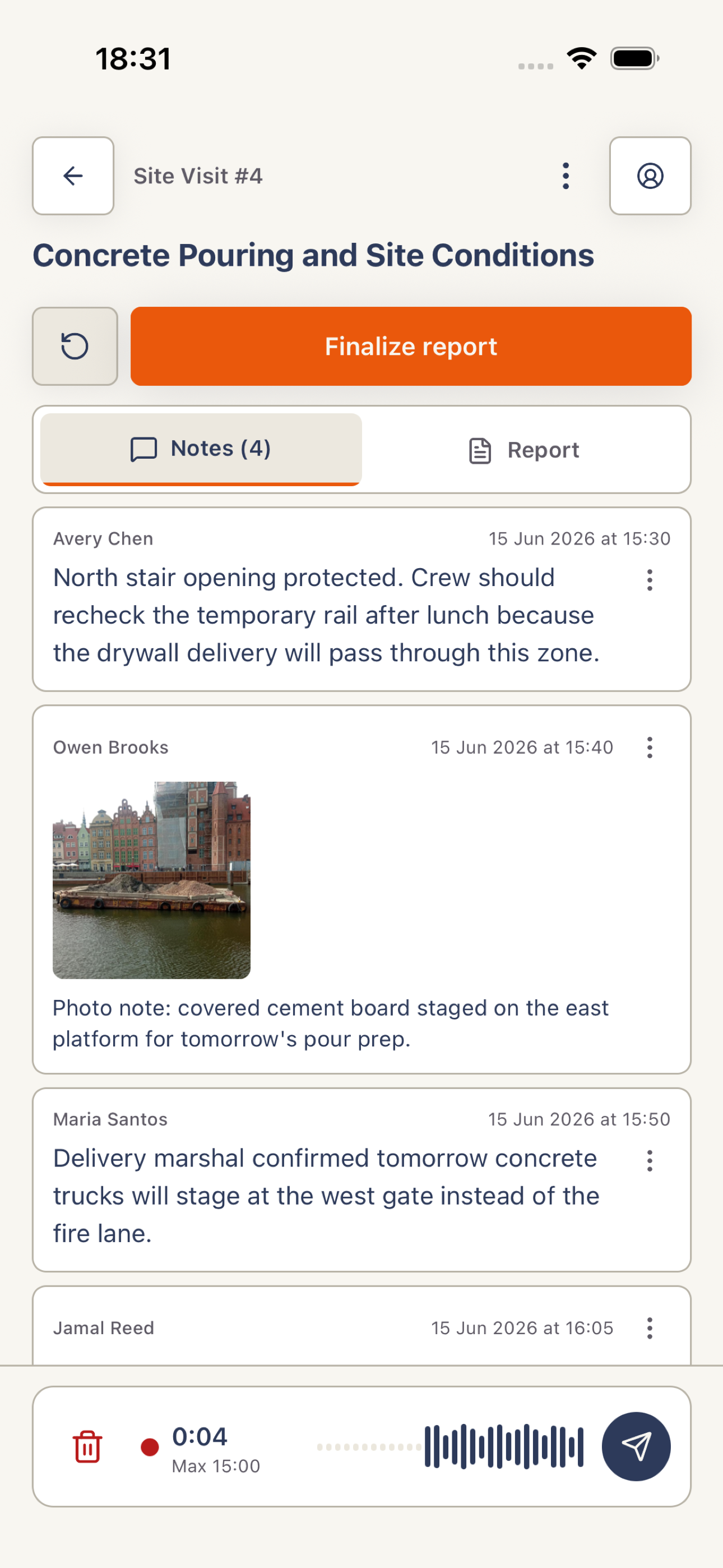
Add short text notes, photos, or voice notes. Send each update into the timeline, and wait for uploads or voice processing to finish.
 View full screenshot
 Generate the report
Tap Generate report after at least one note is ready. Keep the draft open while generation completes, then open Report.
Review and correct it
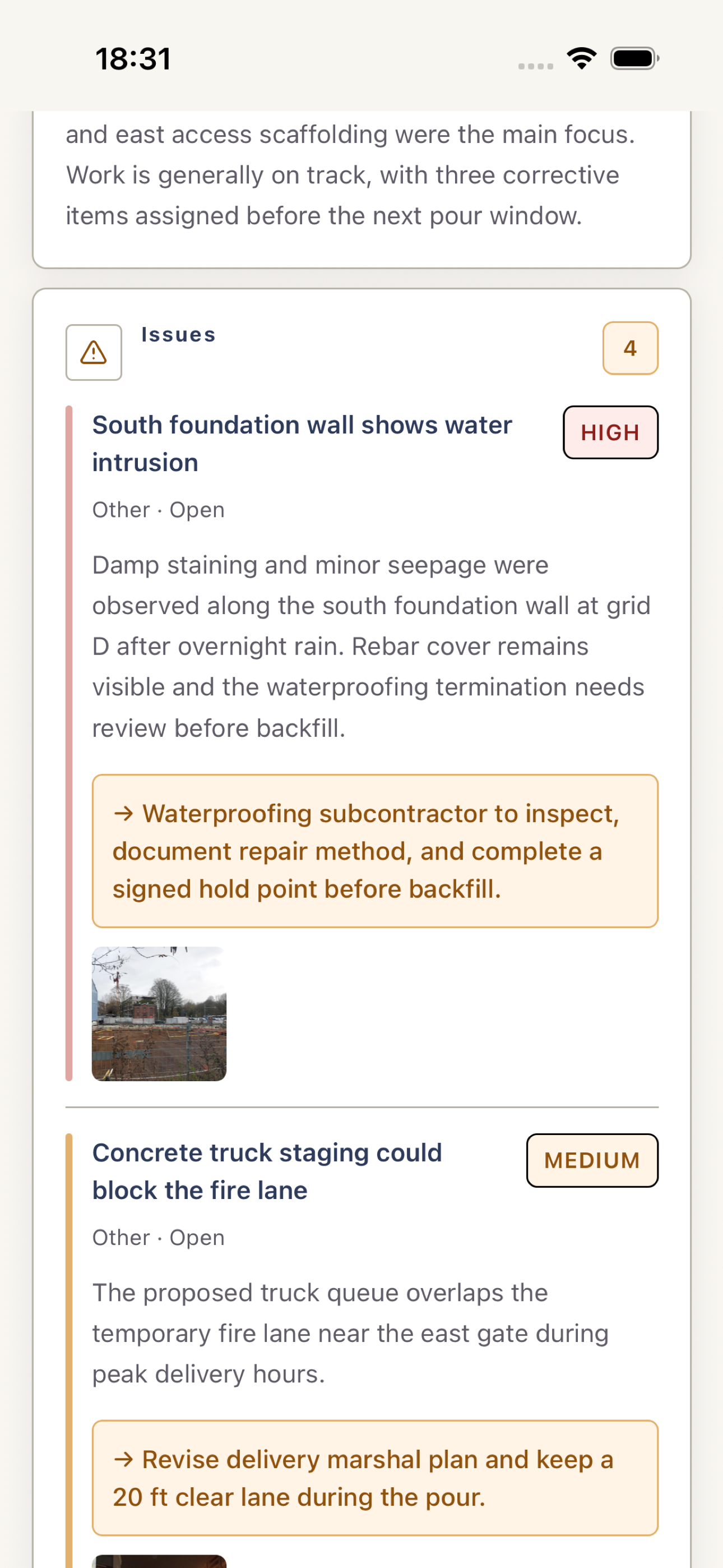
Check every report card. Tap a card’s pencil action to correct it and save. There is no separate Edit tab. If source notes change, Harpa Pro queues an updated draft while the report remains open.
 View full screenshot
 Finalize and review together
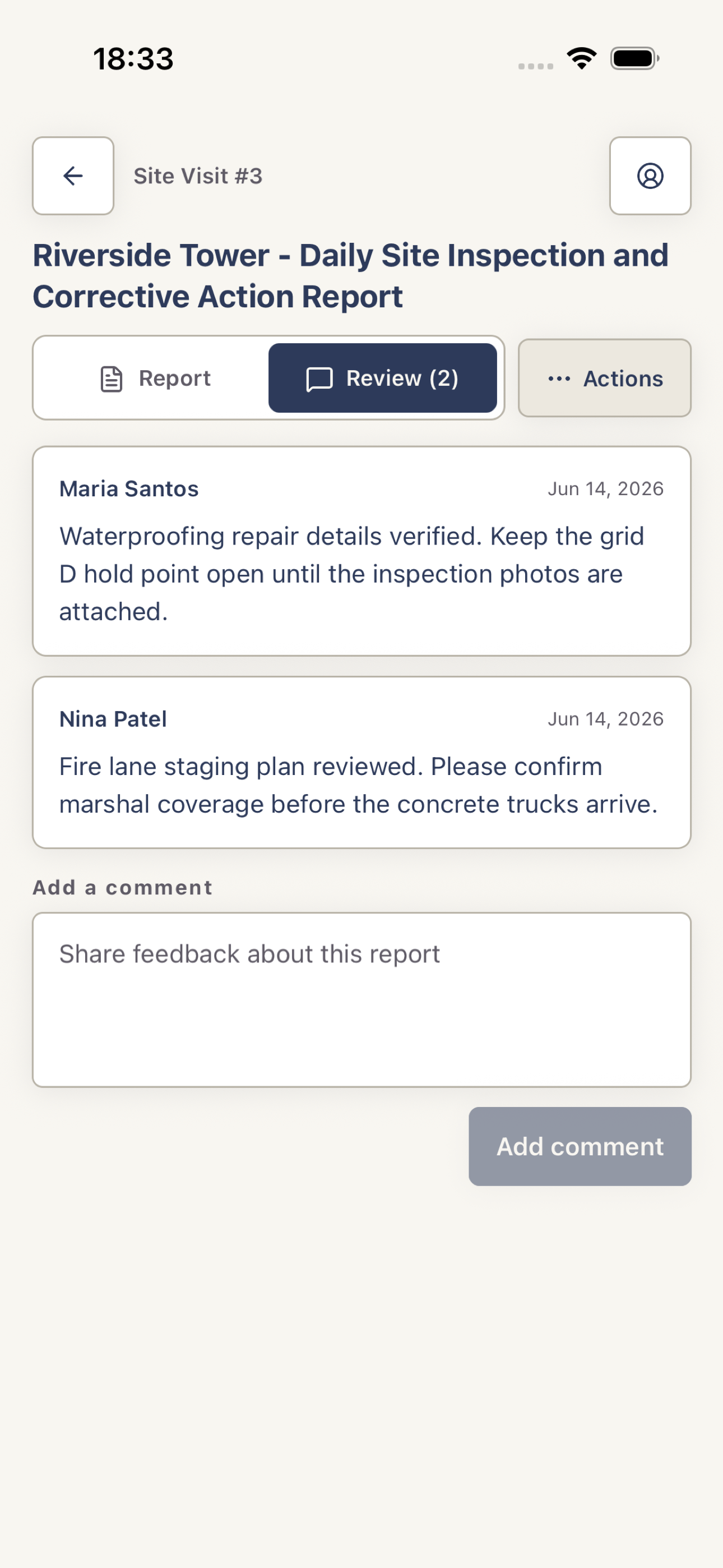
Verify names, dates, quantities, issues, and commitments. A project Owner can then tap Finalize report. The report body becomes read-only, and every project member can use Review to read or add comments.
 View full screenshot
 Generated output is a draft. Review it against the site record before finalizing or sharing it.