
Open a finalized report
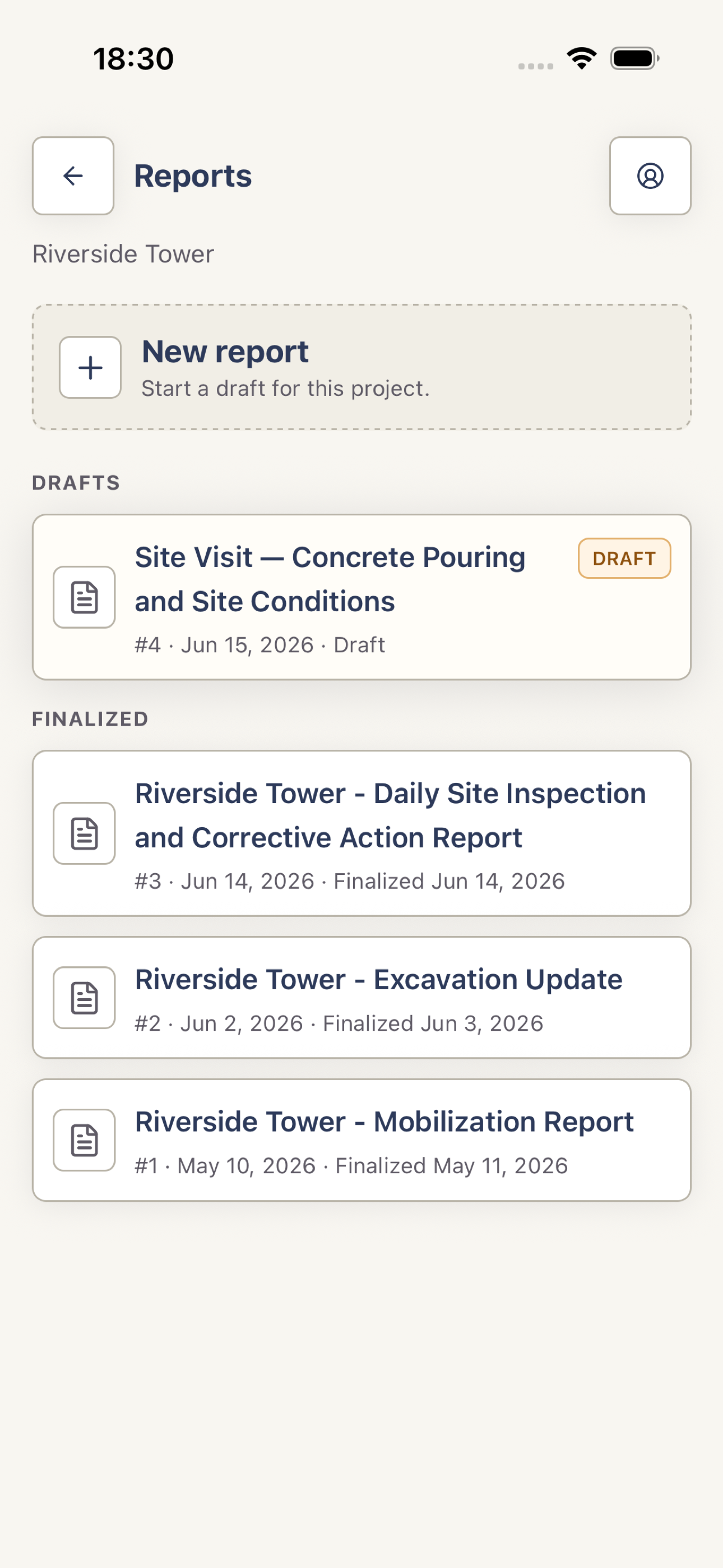
Open the project, tap Reports, and choose a report from the finalized section. Draft reports must be reviewed and finalized first.
 View full screenshot
 Open the PDF preview
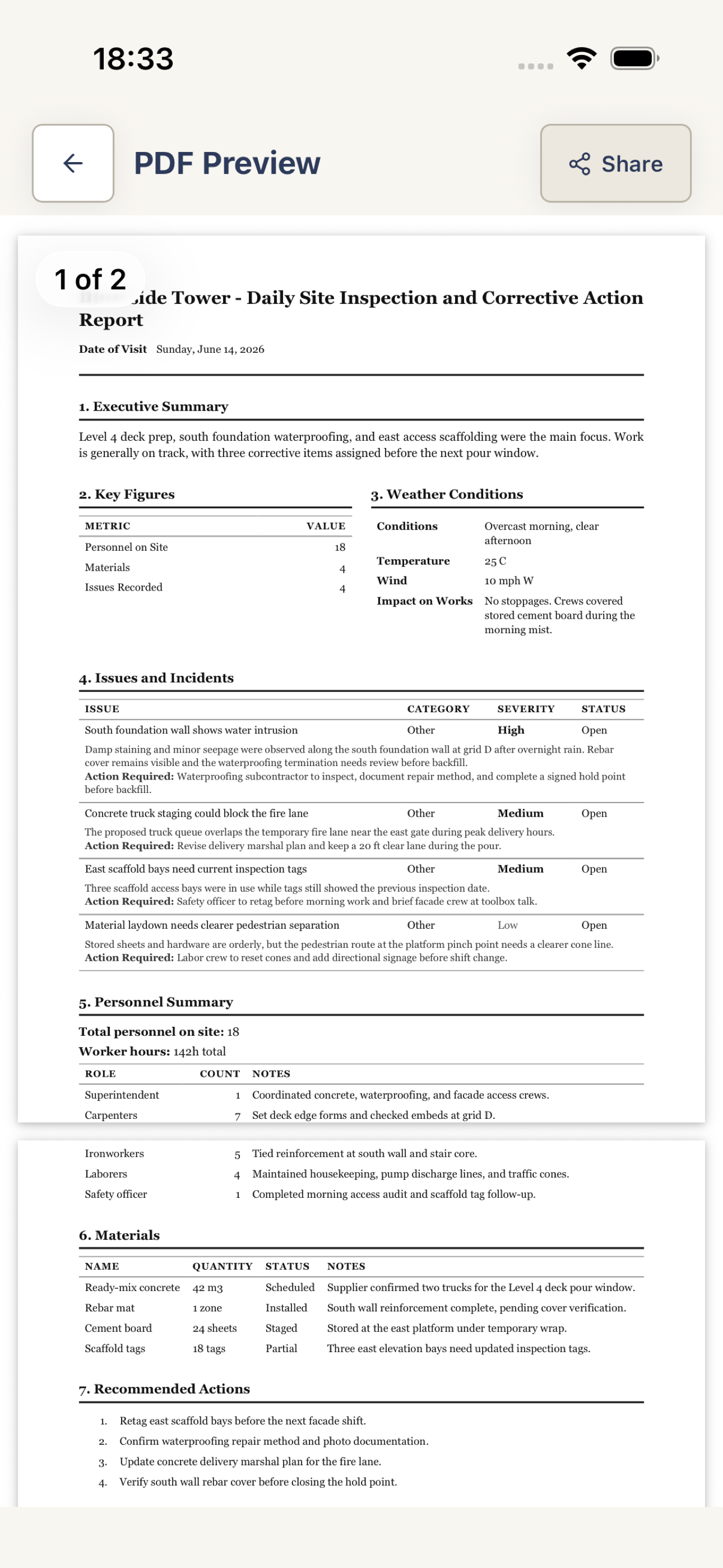
Open Report Actions and tap View PDF. Harpa Pro builds the PDF on the device and opens the preview.
Review the PDF
Scan the summary, figures, issues, people, materials, and actions. Close the preview if the report needs a correction.
 View full screenshot
 Share or save it
Tap Share PDF in the preview, then choose a destination from the iPhone share sheet. You can also use Save PDF from Report Actions.
If a correction is needed, return to the report, unfinalize it if authorized, edit the affected card, and finalize it again.